
Getting Started
Getting Started with Google Easy Embed Pro
Get up and running in a few minutes. This guide walks you through adding Google Easy Embed Pro to your monday.com board, connecting your Google account, and embedding a file.
Step 1: Add Google Easy Embed Pro to Your Board
Step 2: Connect with Google
Step 3: Select a File to Embed
Step 1: Add Google Easy Embed Pro to Your Board
- Open the monday.com board where you want to embed a Google file.
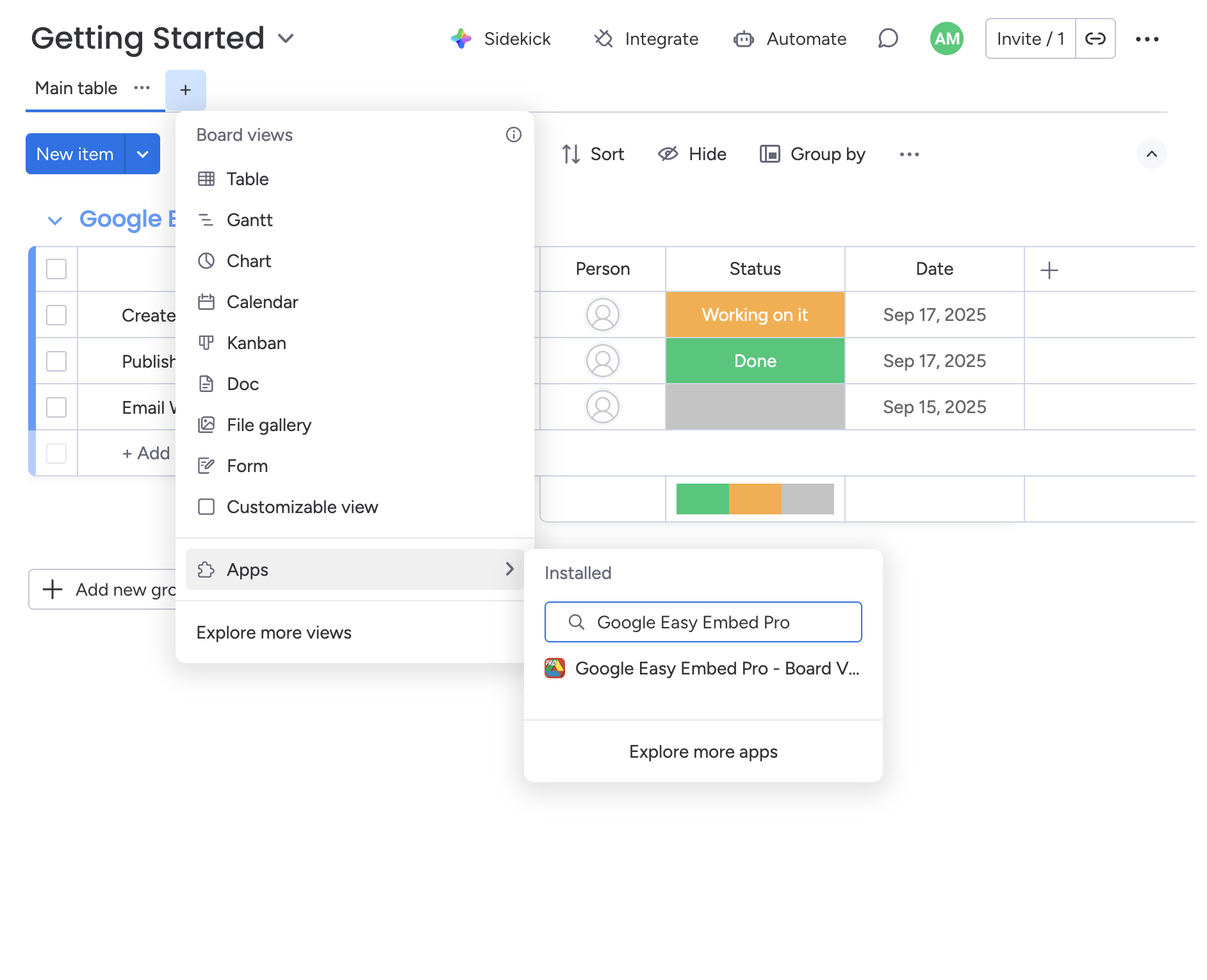
- Click the + button at the top of your board, next to your existing views.
- Select Apps from the view options.
- Search for Google Easy Embed Pro and select it.
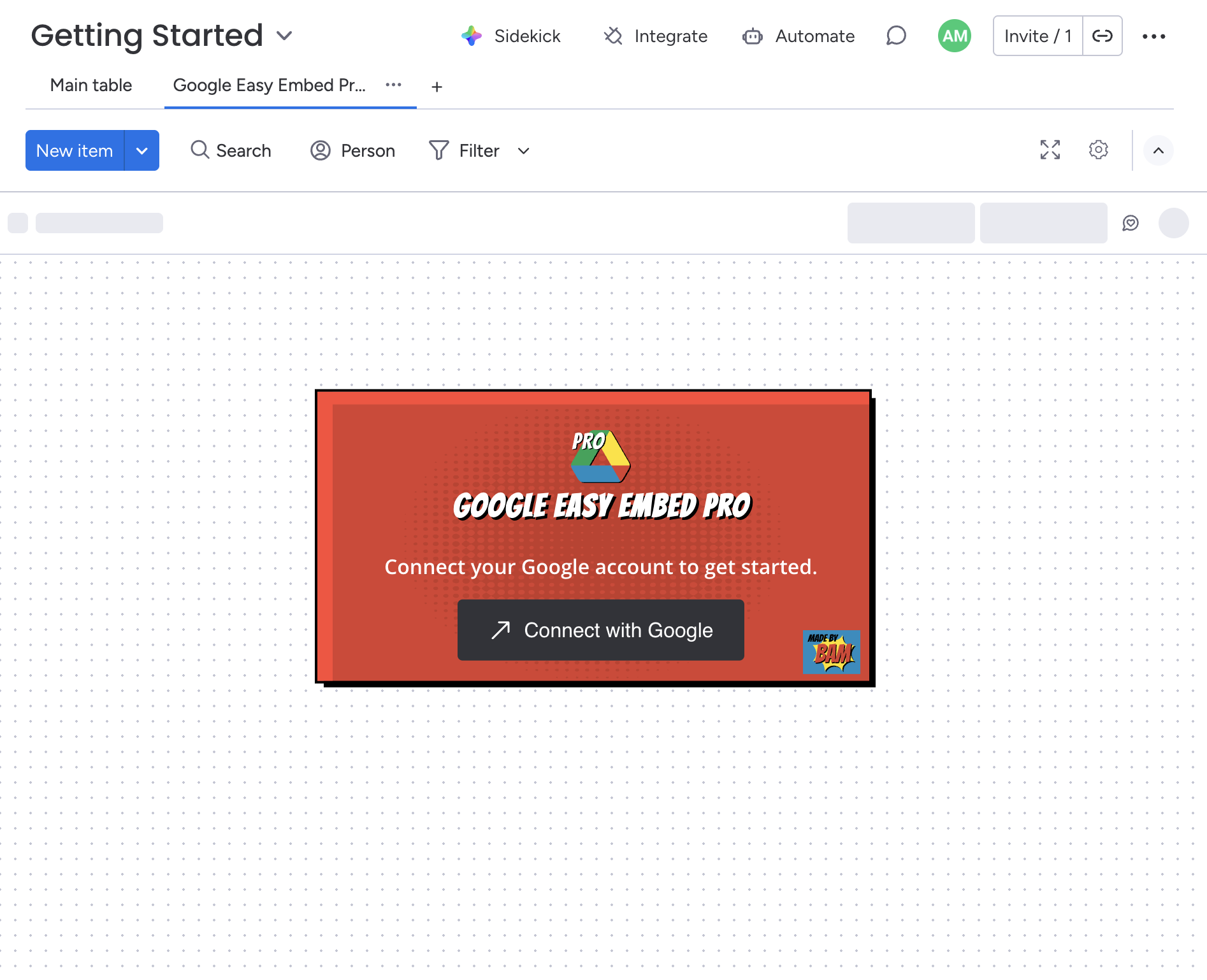
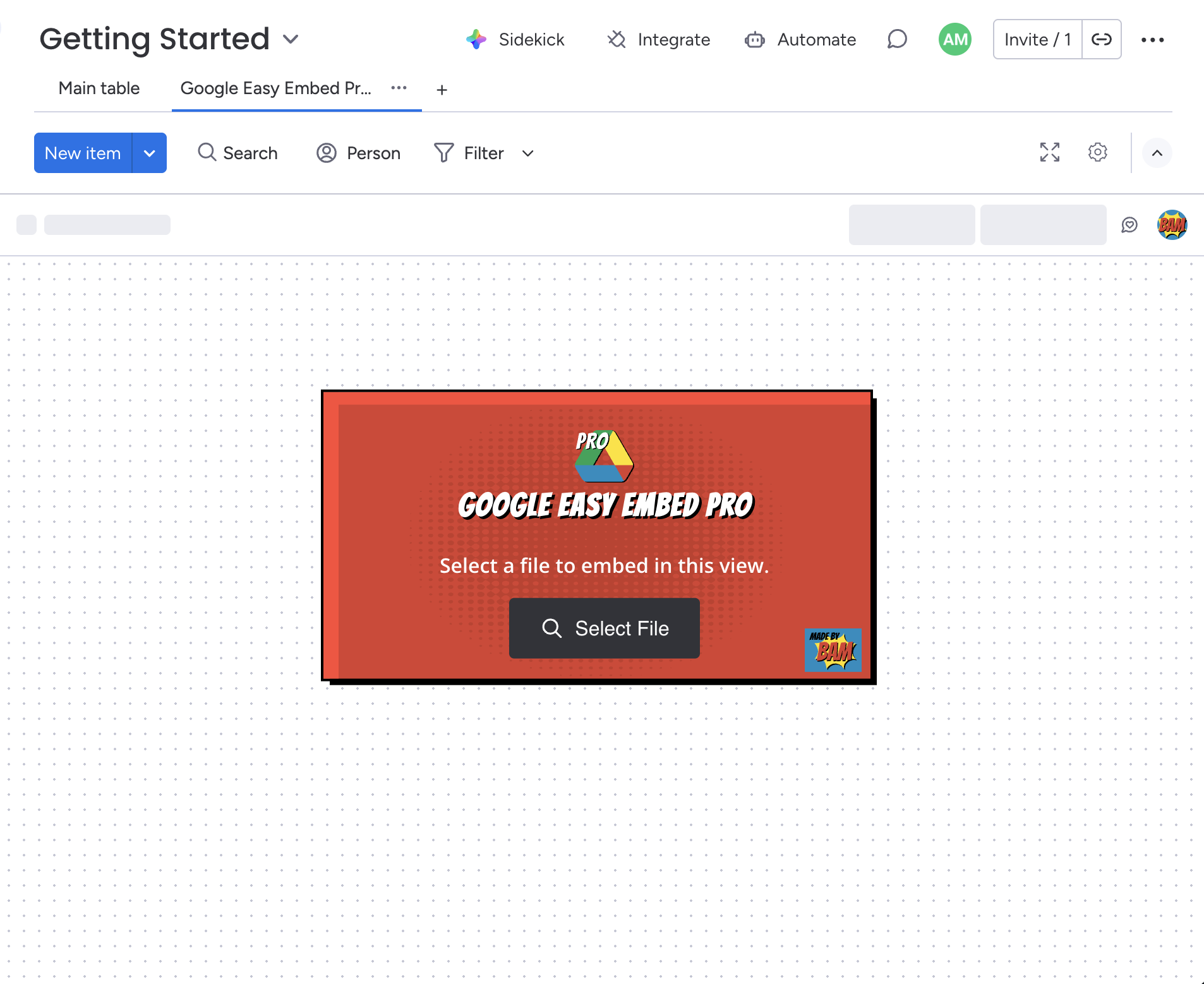
The app will open as a new board view and display the welcome screen.
Step 2: Connect with Google
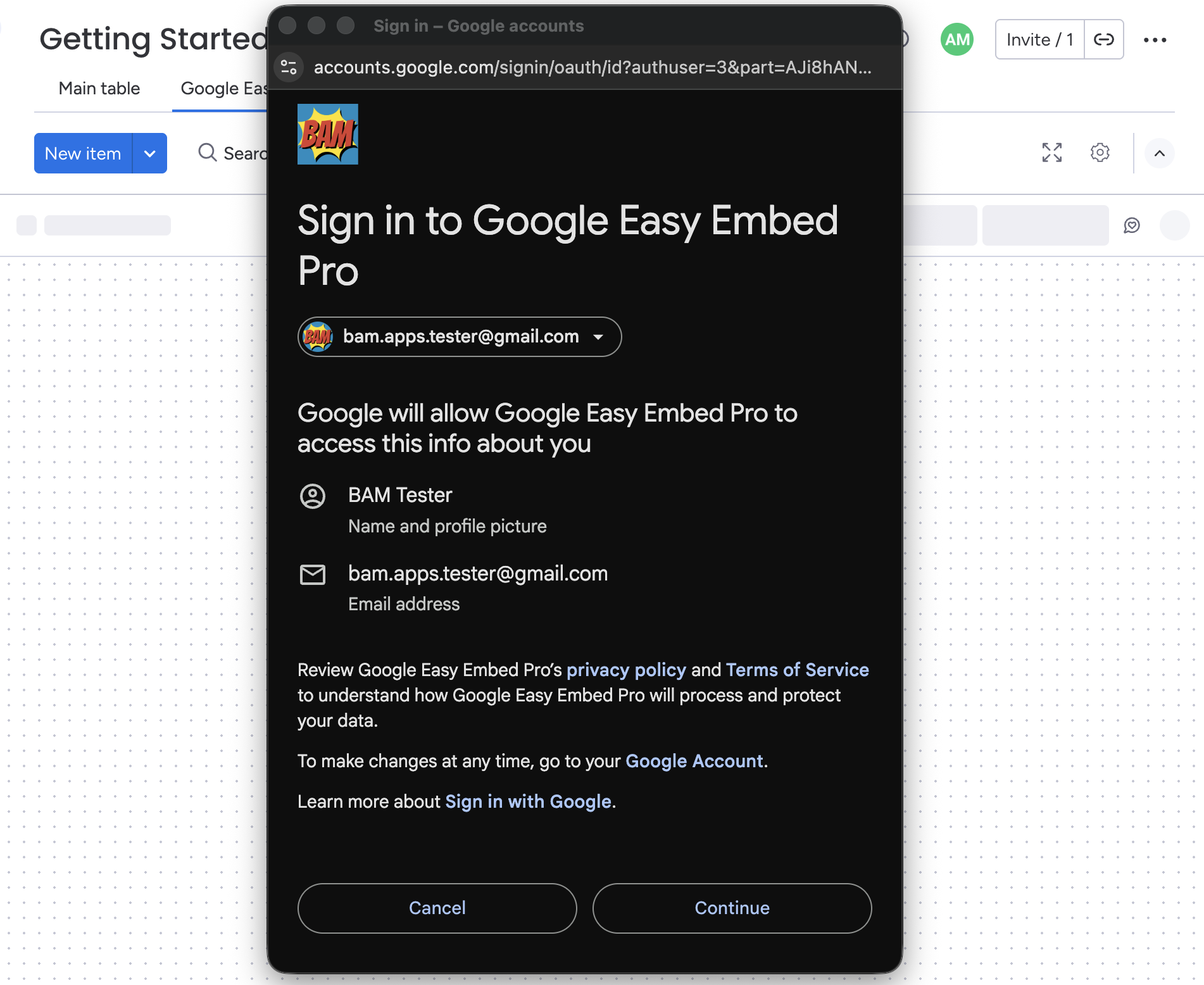
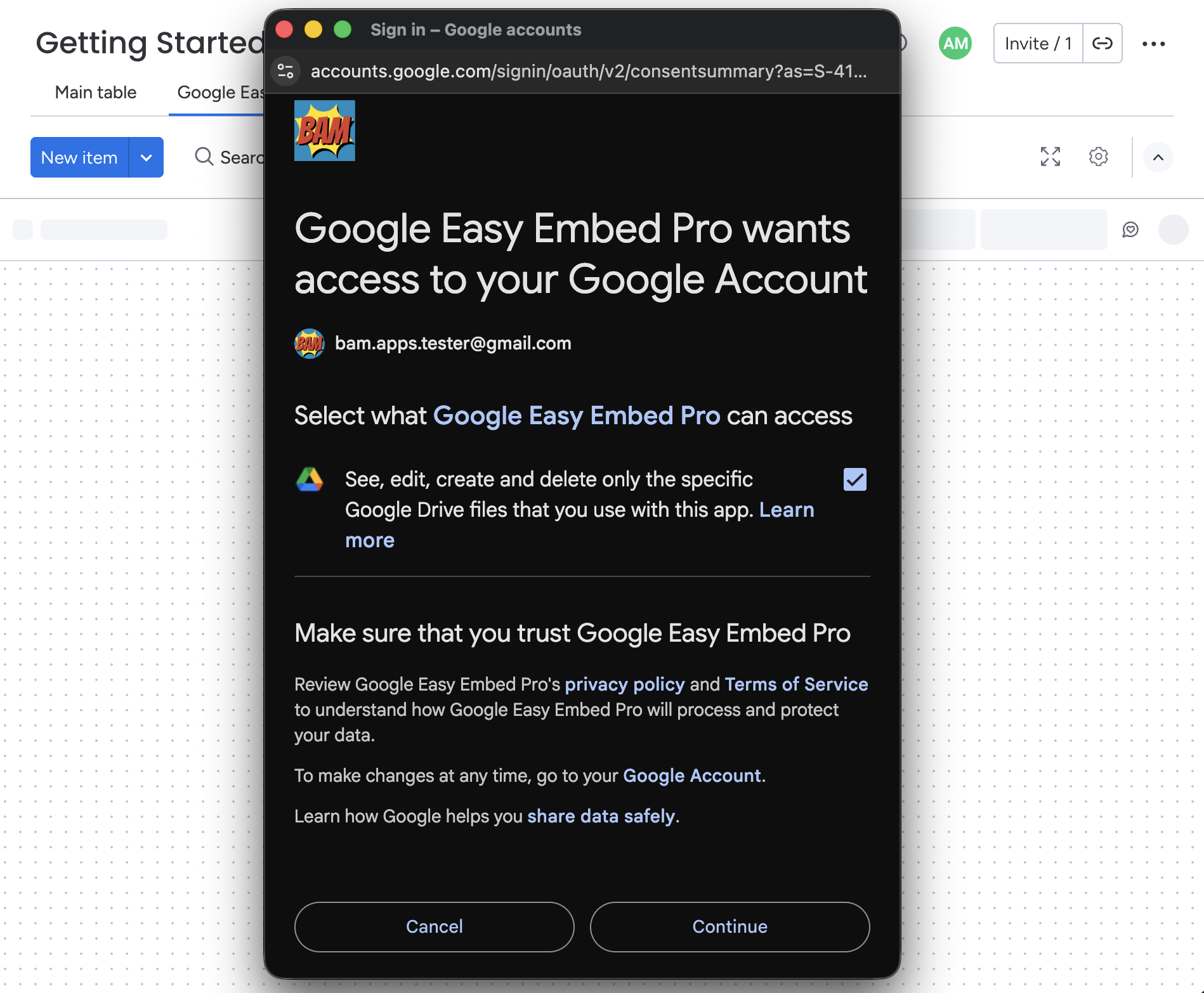
Click the Connect with Google button on the welcome screen. A popup will open where you'll sign in to your Google account and grant permissions for profile and Drive access. Make sure you check the box when approving drive access.
Note: you are only granting access to the files which you select to embed. This does not allow access to all your drive files.
Read more about Connect with Google
Step 3: Select a File to Embed
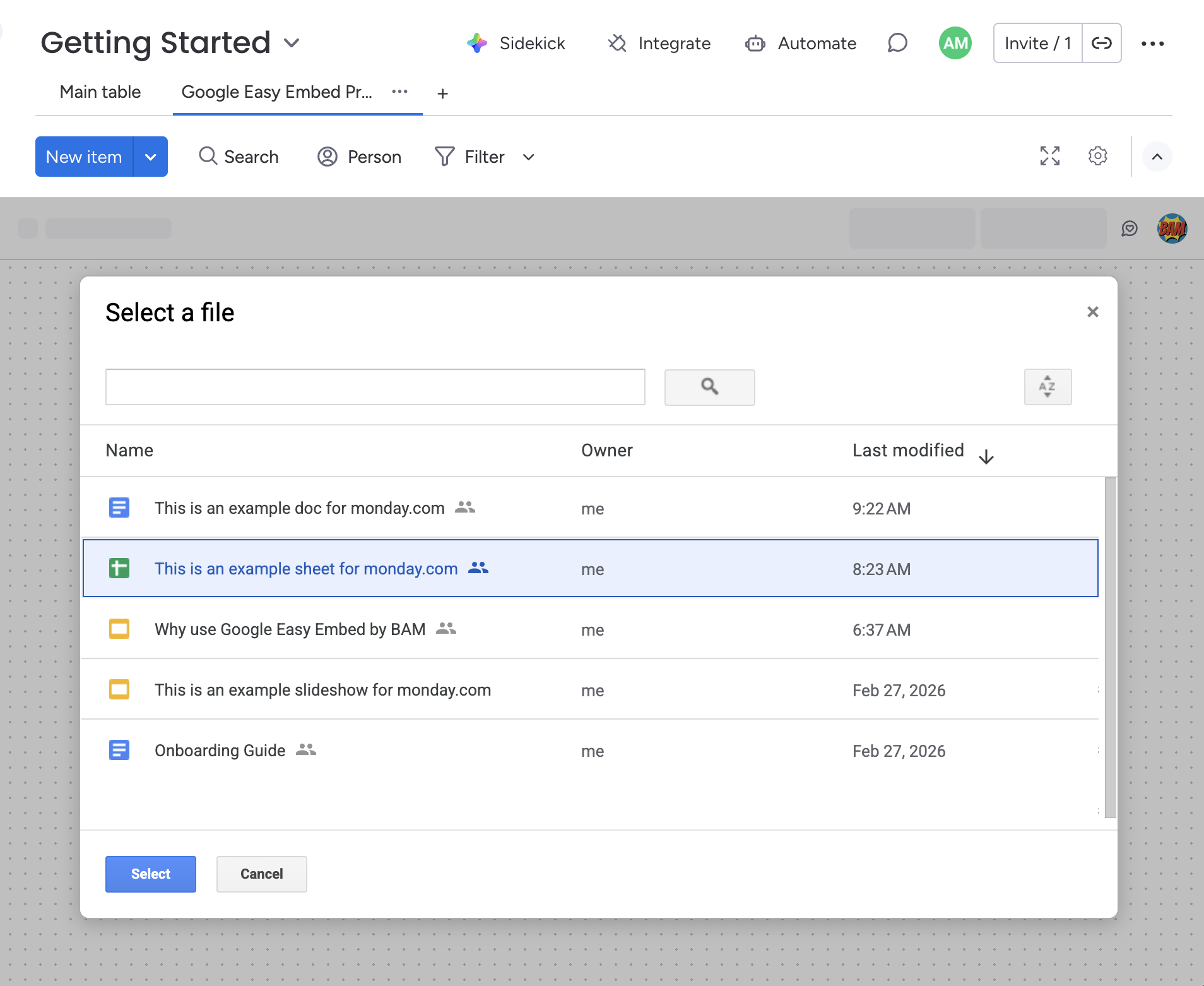
After connecting, click the Select File button to open the Google file picker. Browse or search for a Google Doc, Sheet, Slide, or Form and select it to embed.
Optional Settings
Once your file is embedded, you can customize the access and display settings from the toolbar.
Access Mode
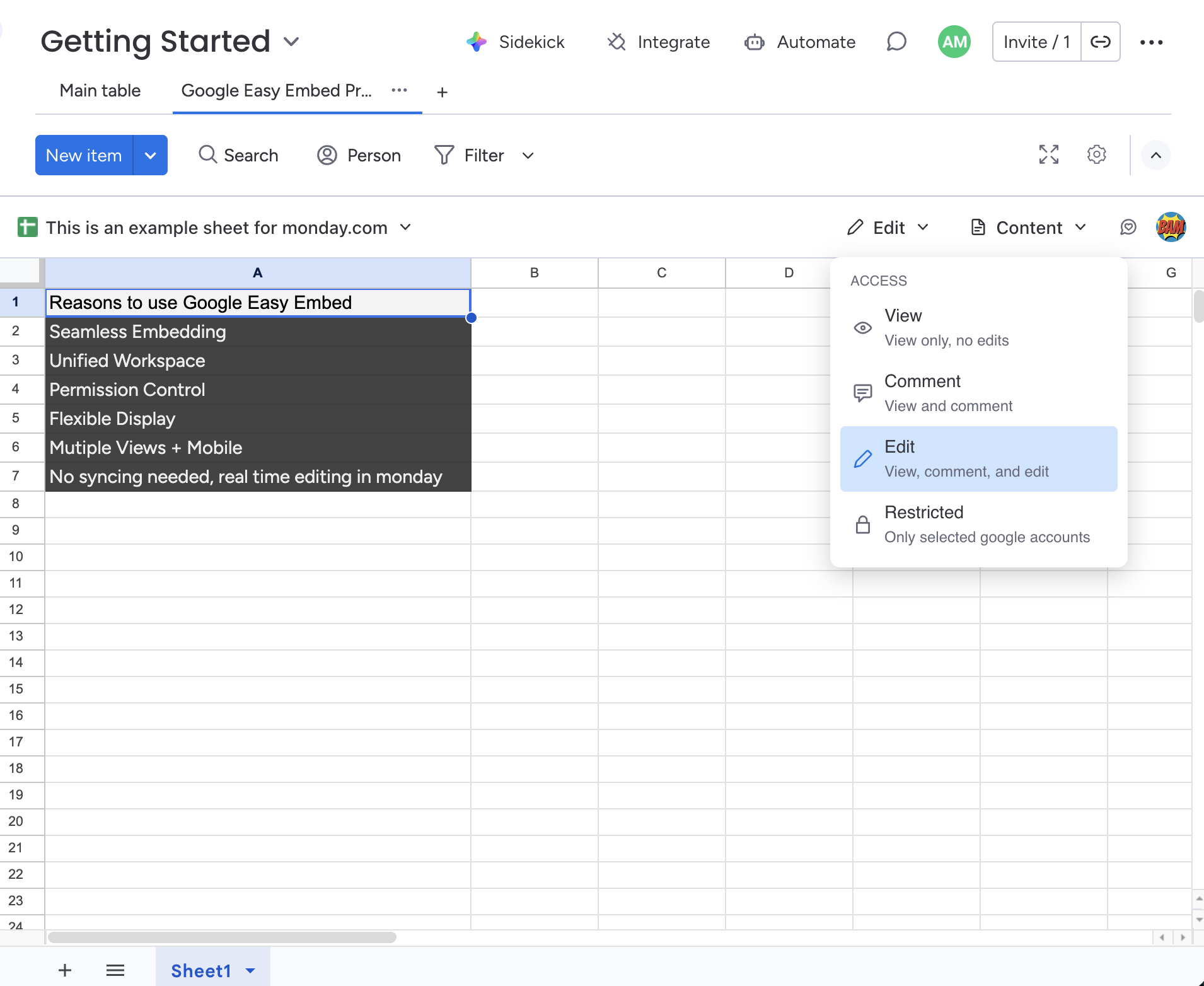
The access mode controls what your team members can do with the embedded file — view, comment, edit, or restrict access entirely. Click the Access dropdown in the toolbar to change it.
Display Mode
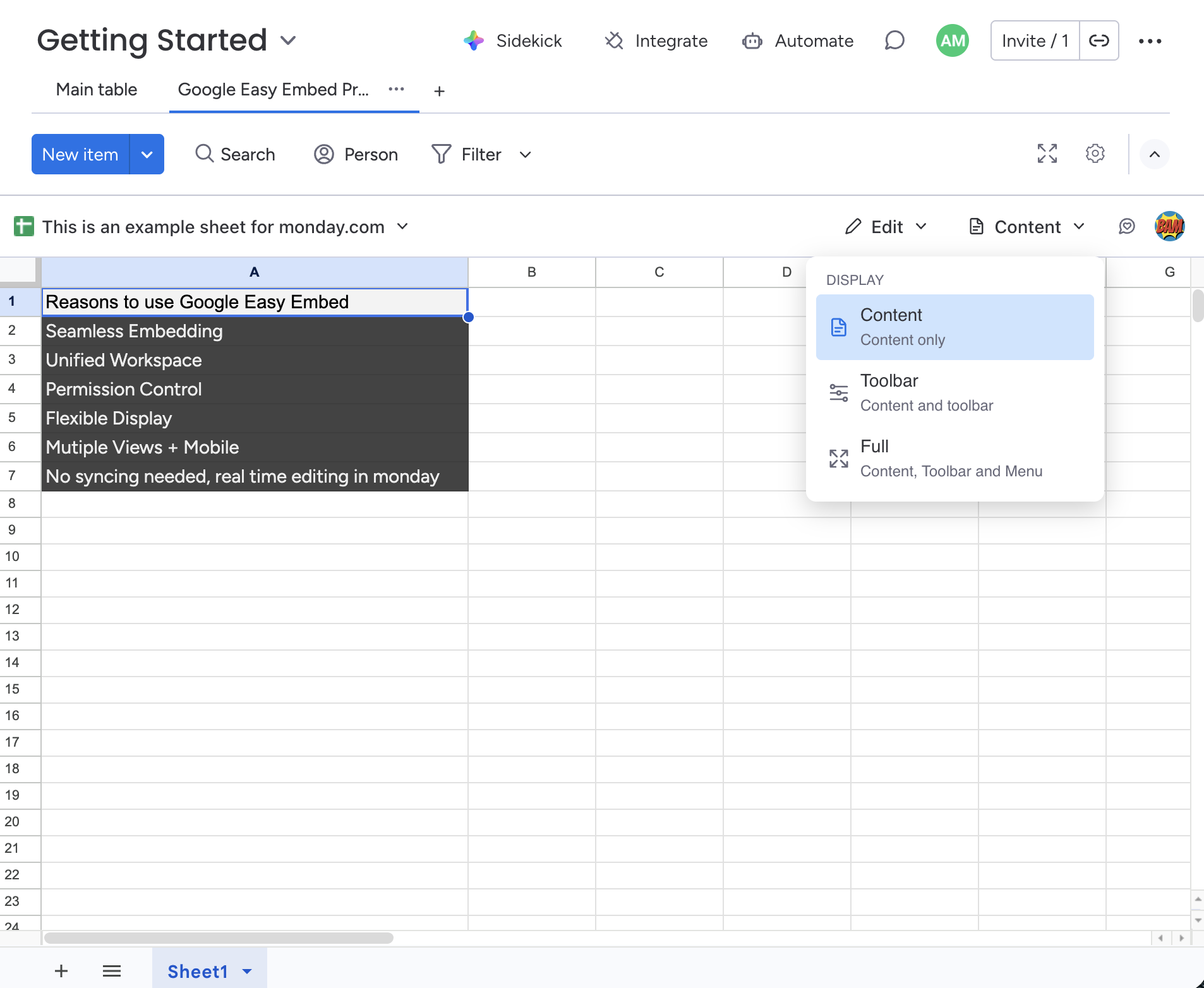
The display mode controls how much of the Google interface is visible — from a clean content-only view to the full Google UI. Click the Display dropdown in the toolbar to change it.
Read More
- Toolbar Overview — Learn about all the toolbar controls.
- Access Modes — Understand the four permission levels.
- Display Modes — Choose how much of the Google interface to show.
- File Options — Change or remove the embedded file.
- Support — Get help with the app.