
Select a File to Embed
After connecting your Google account, you can select a file from your Google Drive to embed in the board view.
How to Select a File
After connecting, you'll see the file selection screen with a Select File button in the center.
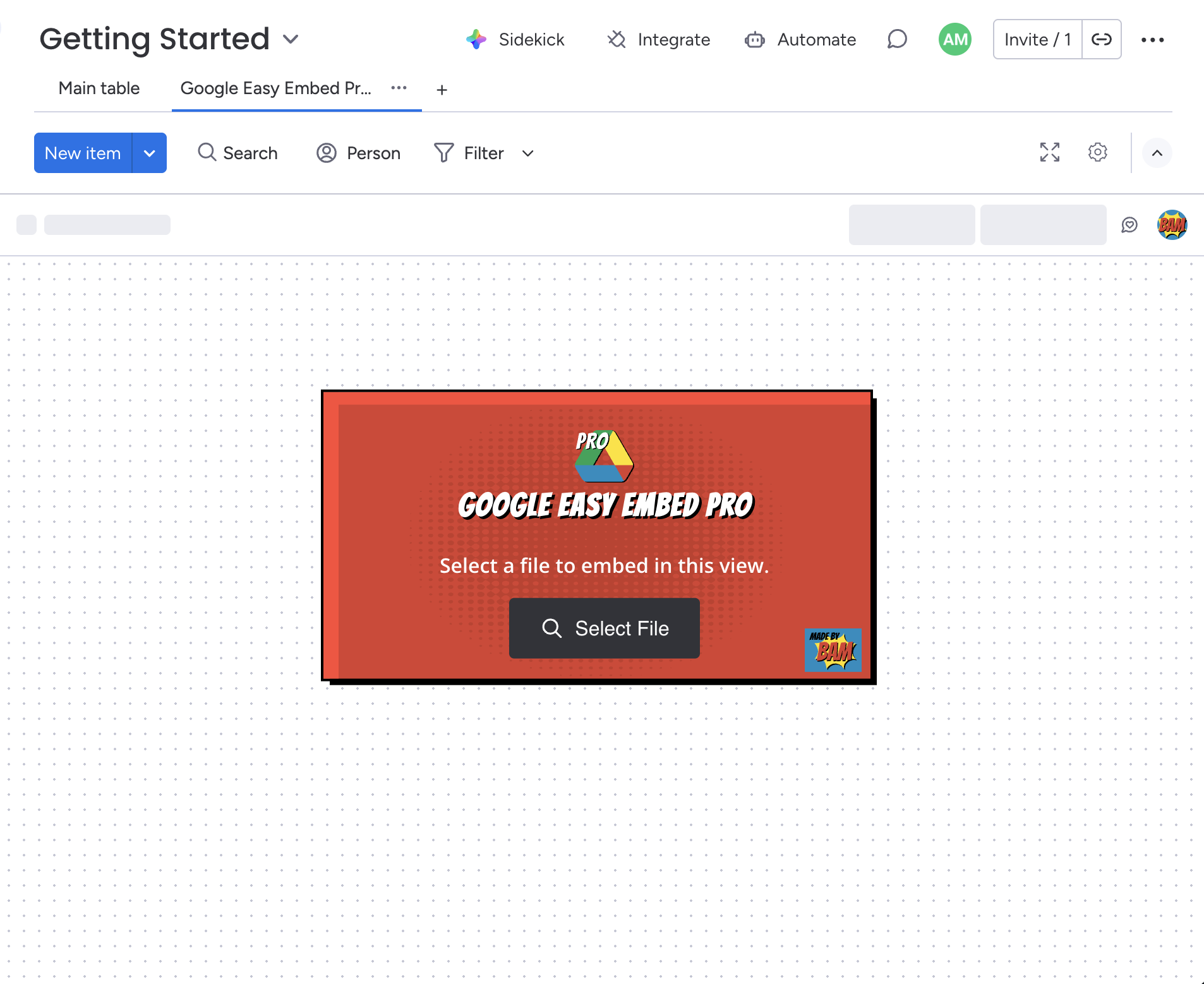
- Click the Select File button.
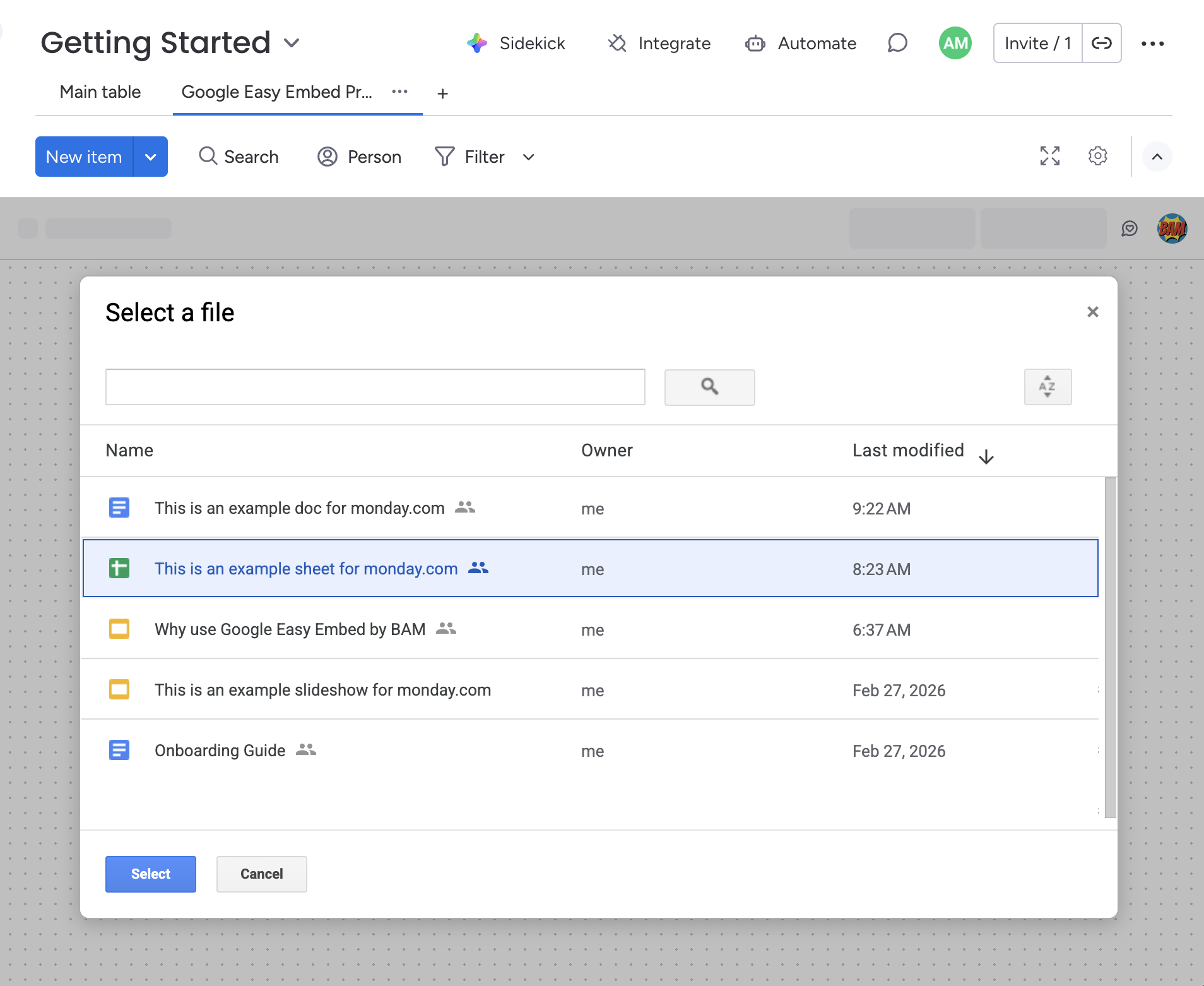
- The Google file picker will open, showing your Google Drive files.
- Browse or search for the file you want to embed.
- Select your file and click Select.
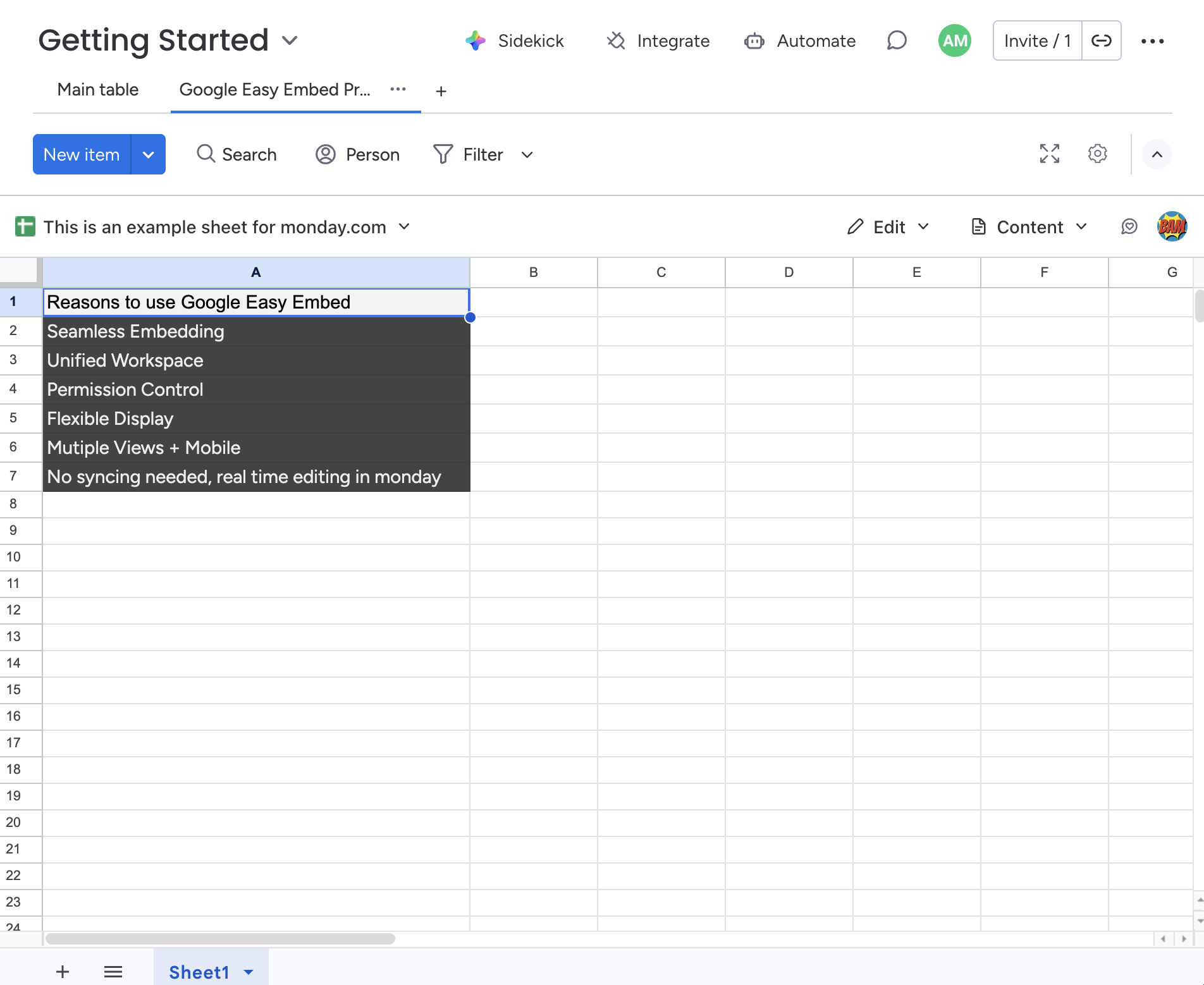
The file will be embedded in your board view with a toolbar at the top for managing settings.
Supported File Types
| File Type | Embed | Display Modes |
|---|---|---|
| Google Docs | Yes | Content, Toolbar, Full |
| Google Sheets | Yes | Content, Toolbar, Full |
| Google Slides | Yes | Content only |
| Google Forms | Yes | Content only |
View Ownership
Once you embed a file, you become the owner of this view configuration. Only you can:
- Change the embedded file
- Update the access mode
- Update the display mode
Team members will see the embedded file with the settings you've configured, but cannot modify them.
Changing the File Later
To change the embedded file after initial setup, click the file name dropdown in the toolbar and select Change File. You must be connected to Google to change the file.