
Display Modes
The display mode controls how much of the Google interface is visible in the embedded view. This lets you tailor the experience — from a clean, distraction-free embed to the full Google editing interface.
To change the display mode, click the Display dropdown in the toolbar and select one of the available options.
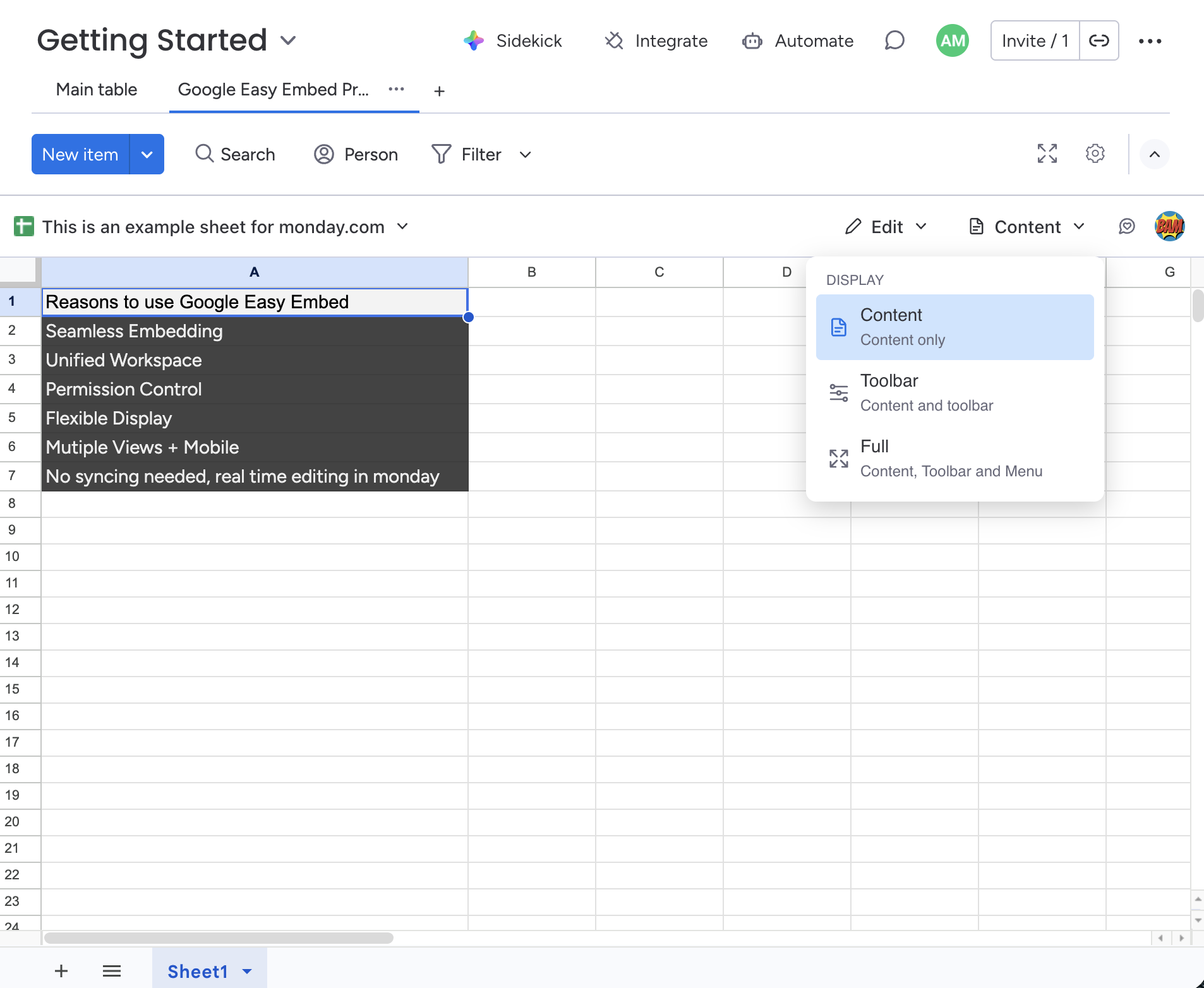
Content
Shows the file content only with no Google UI elements. This is the cleanest, most distraction-free view.
- Available for: Google Docs, Sheets, Slides, Forms
- Best for: Presenting information to your team without the clutter of toolbars or menus.
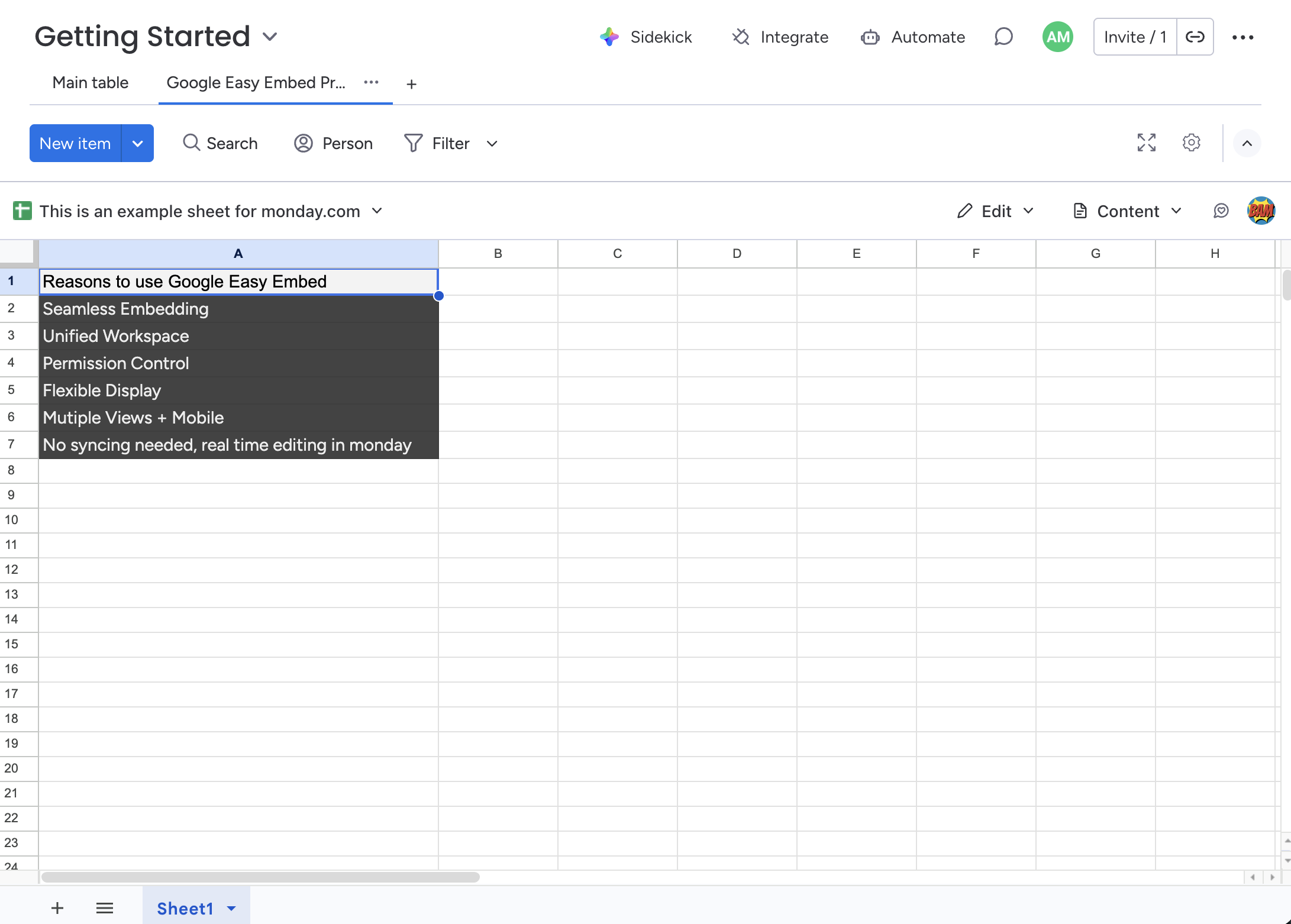
Toolbar
Shows the file content plus the Google editing toolbar. Team members with Comment or Edit access can use the toolbar to interact with the file.
- Available for: Google Docs, Sheets
- Best for: When your team needs basic editing tools but doesn't need the full menu bar.
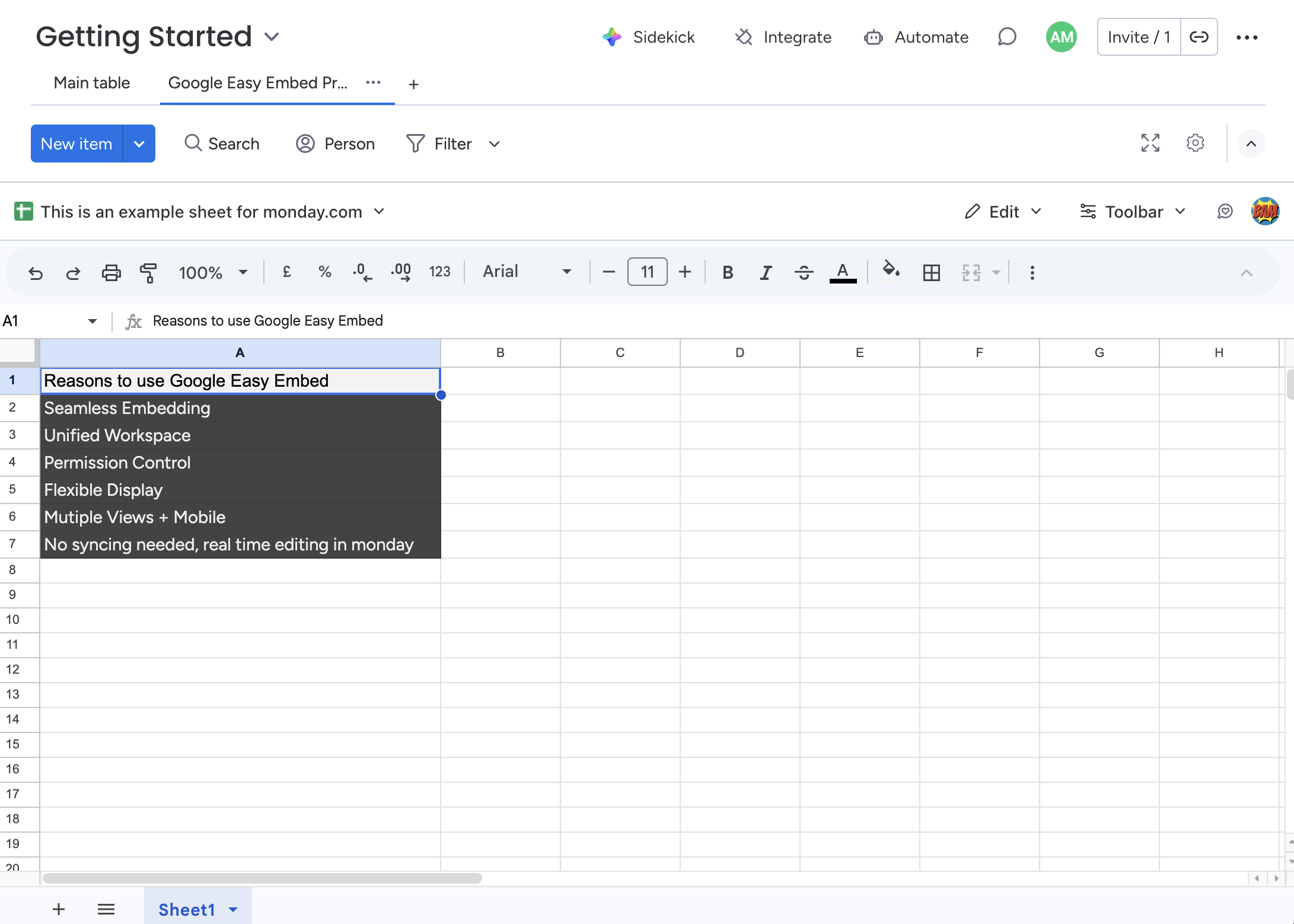
Full
Shows the complete Google interface including the toolbar and menu bar.
- Available for: Google Docs, Sheets
- Best for: When your team needs full editing capabilities, including access to menus for formatting, inserting images, and other advanced features.
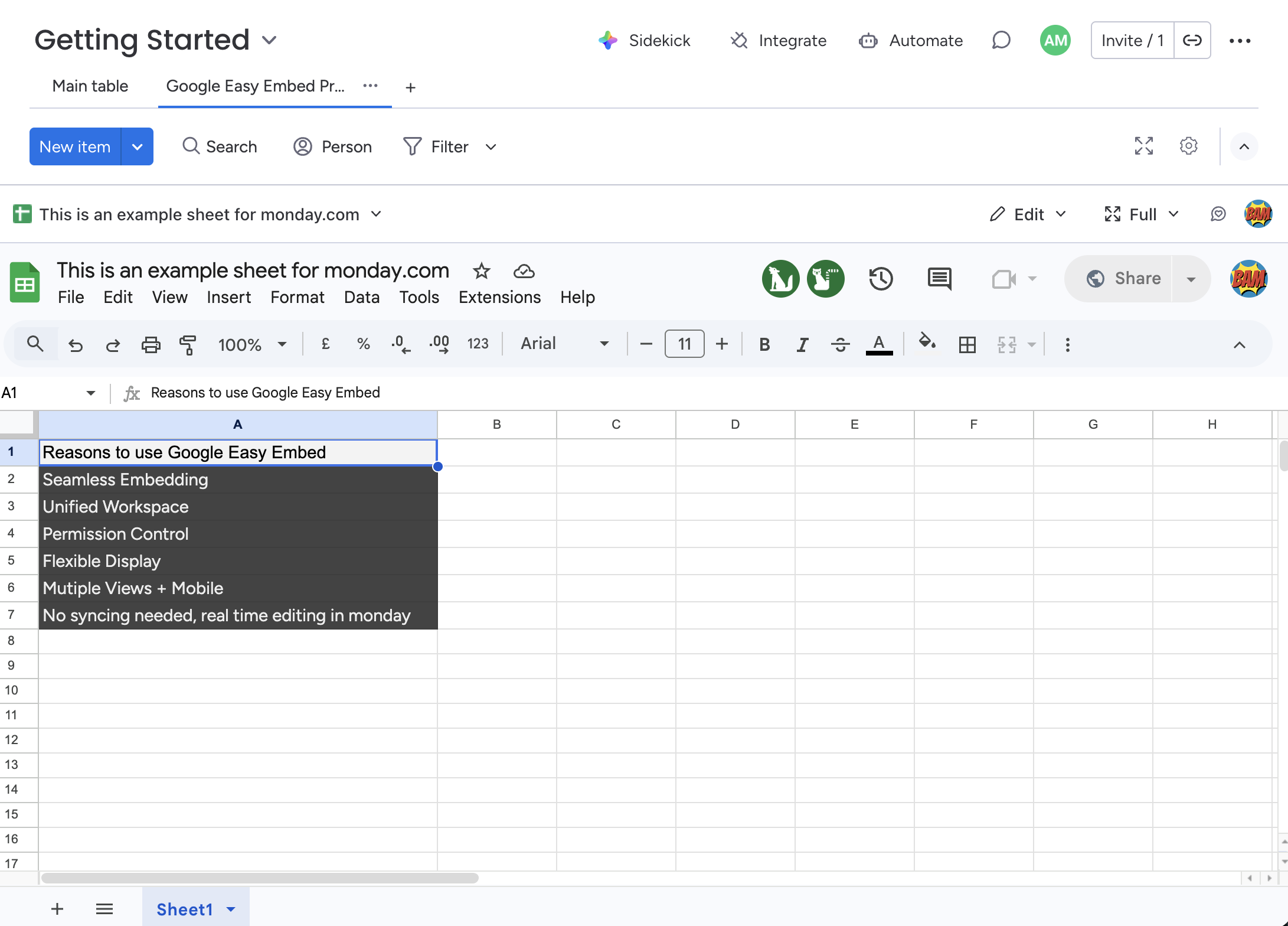
File Type Availability
Not all display modes are available for every file type.
| File Type | Content | Toolbar | Full |
|---|---|---|---|
| Google Docs | Yes | Yes | Yes |
| Google Sheets | Yes | Yes | Yes |
| Google Slides | Yes | — | — |
| Google Forms | Yes | — | — |
For Google Slides and Forms, only the Content display mode is available. The display selector will not appear in the toolbar for these file types.
Who Can Change Display?
Only the owner of the view configuration (the person who first embedded the file) can change the display mode.