
Access Modes
The access mode controls what your team members can do with the embedded file. When you change the access mode, Google sharing permissions on the file are updated automatically to match your selection.
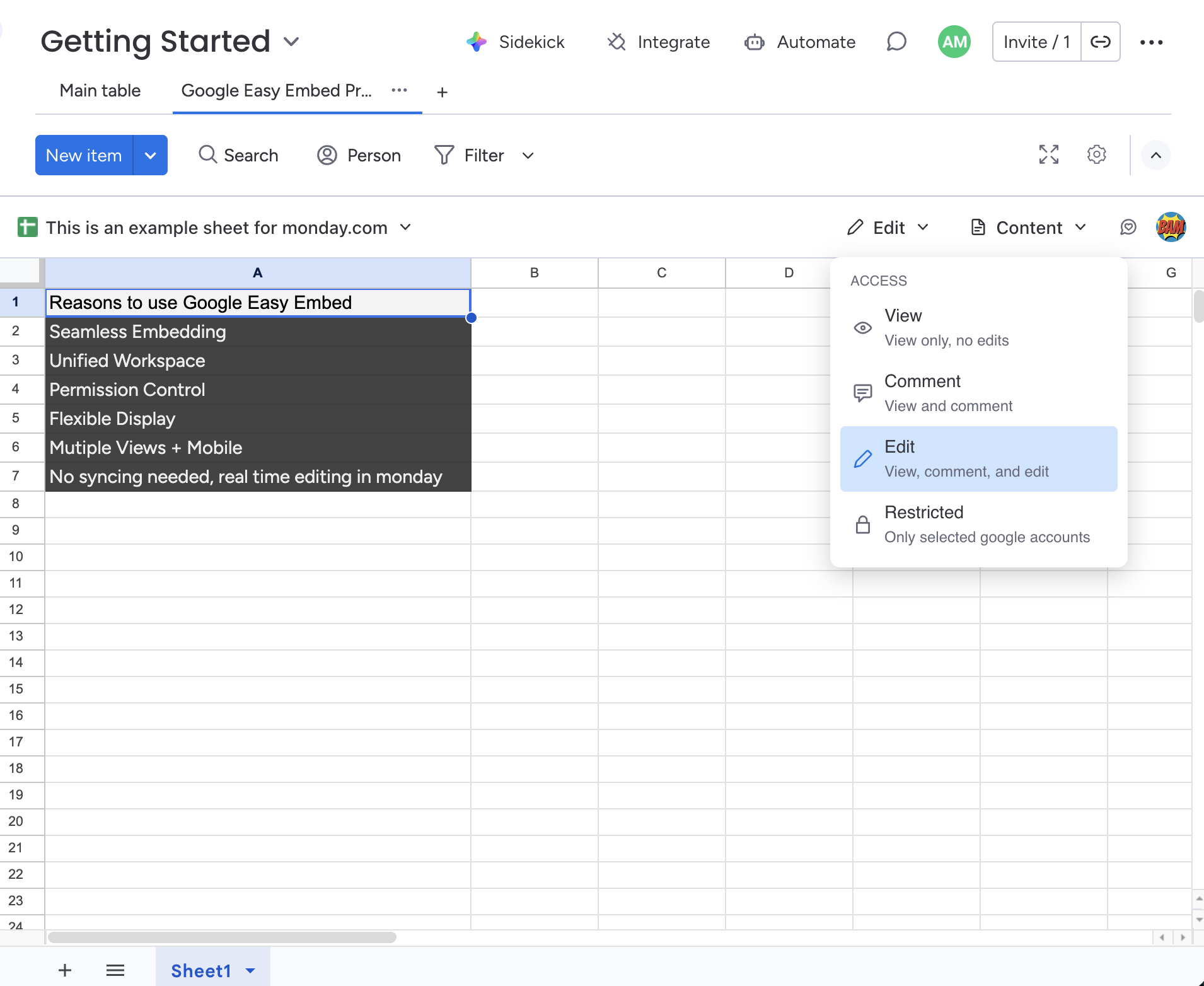
To change the access mode, click the Access dropdown in the toolbar and select one of the four levels.
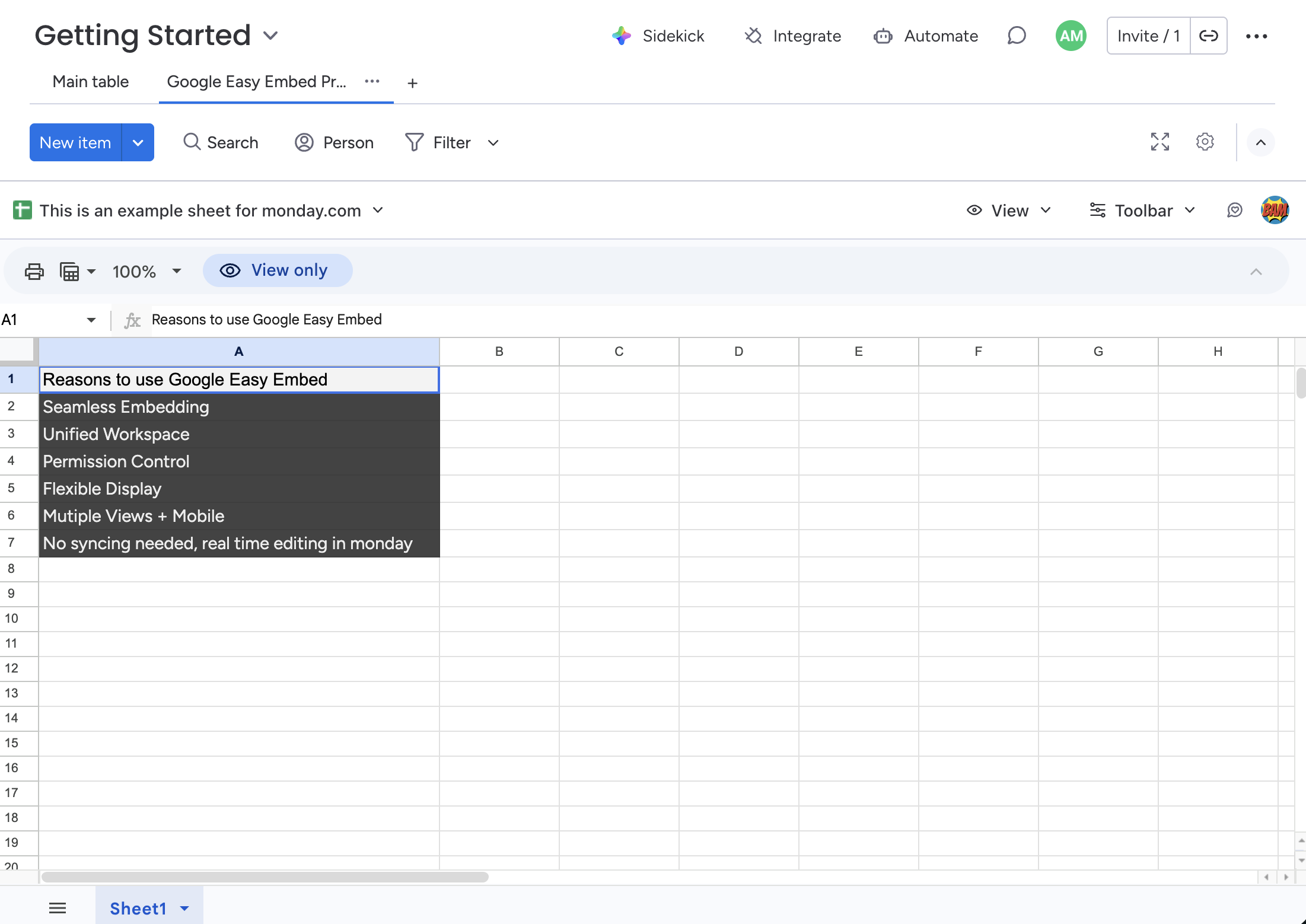
View
Team members can view the file only — no edits allowed. This is the default access mode when you first embed a file.
- Google role: Viewer
- Best for: Sharing reports, reference documents, or any content you don't want others to modify.
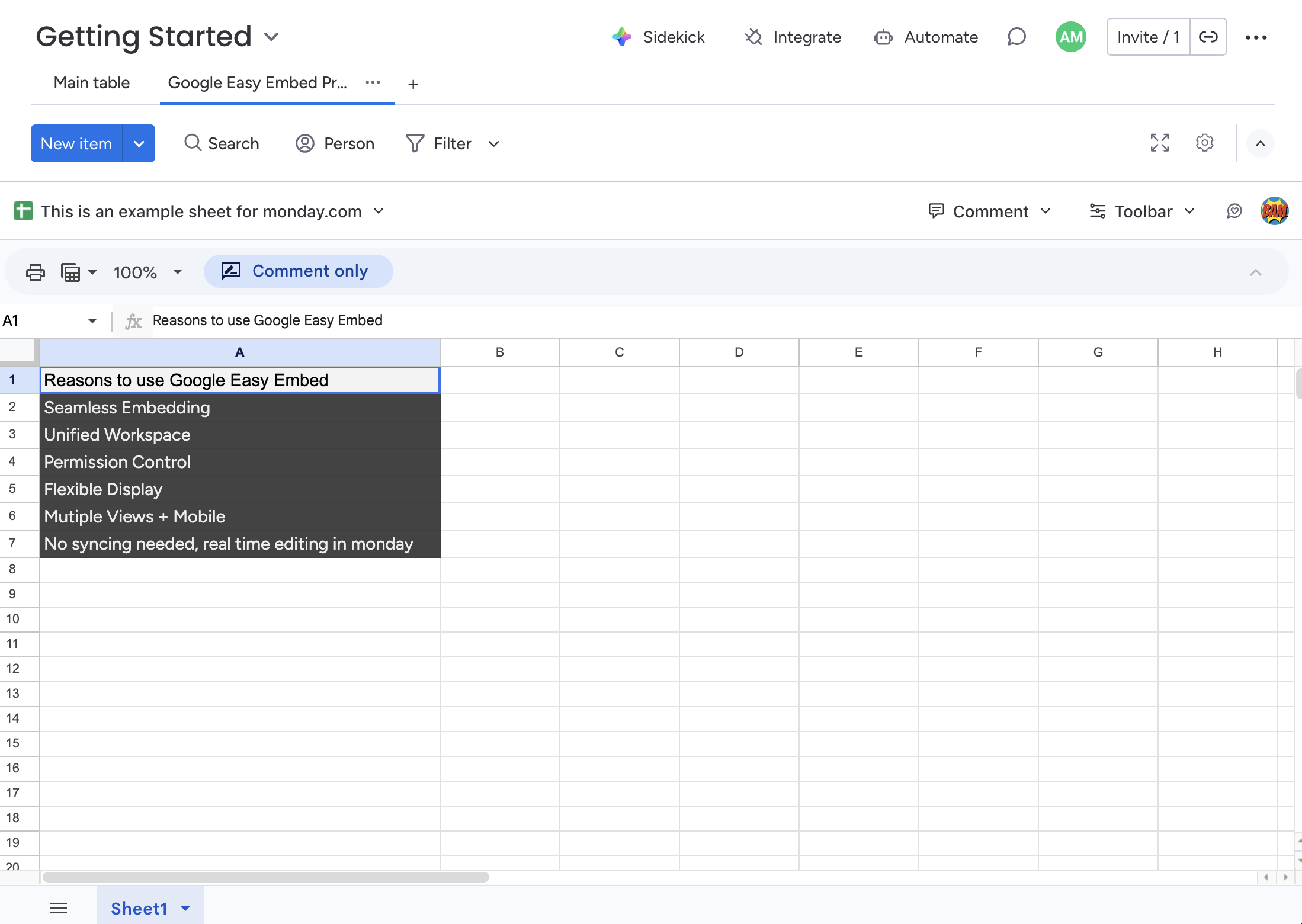
Comment
Team members can view the file and leave comments, but cannot edit the content directly.
- Google role: Commenter
- Best for: Gathering feedback on drafts, proposals, or plans without risking accidental edits.
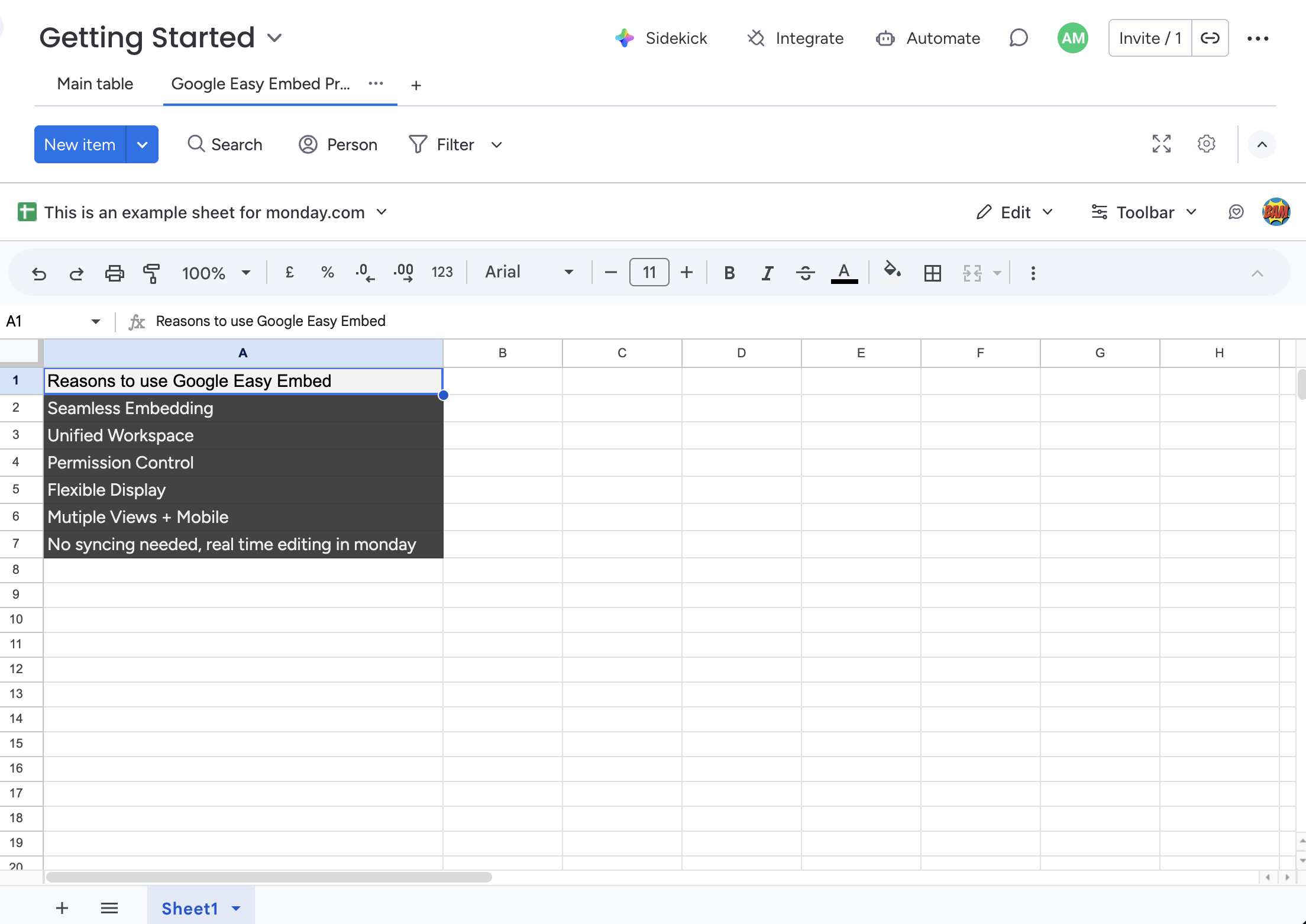
Edit
Team members can view, comment, and edit the file.
- Google role: Editor
- Best for: Collaborative documents, shared spreadsheets, or any file your team needs to work on together.
Restricted
Only selected Google accounts can access the file. No link sharing is applied — access is controlled entirely through the file's existing Google sharing settings.
- Google role: N/A (no sharing changes made)
- Best for: Sensitive or confidential files where you want to control exactly who has access.
Who Can Change Access?
Only the owner of the view configuration (the person who first embedded the file) can change the access mode. Team members will see the current access level in a read-only header but cannot modify it.